How to install wxPython in a Python virtual environment on Debian Buster

wxPython logoLately, I’ve been brushing up on my Python skills, and decided to use wxPython for some GUI programming.  But, I had some trouble installing wxPython in a Python virtual environment on Debian, so once I figured it out, I’ve recorded what I had to do in case anyone else needs to do the same thing.

Note that if you’re NOT using a virtual environment, it’s pretty easy: just install the “python3-wxgtk4.0” package.  Of course, if you’re using Python 2, you’ll need something else, but because Python 2 has reached end-of-life, I don’t know why you’d want to use that!  Anyways, just as a refresher, to install a Debian package, you’ll need to run the following from the command line as root:

apt-get install python3-wxgtk4.0

You may, of course, need to run it with sudo to run as root:

sudo apt-get install python3-wxgtk4.0

In this post, rather than saying whether to run something as root or as a regular user, I’m just going to prepend the root commands with “sudo”; if you get root access another way, do that instead.

OK, but as I said, I want to install wxPython in a Python virtual environment.  The problem comes because Python needs to compile wxPython, so you need a number of development packages installed.  You actually need hundreds of packages (!), but I’ve narrowed it down to a short list, and the other packages will be installed as dependencies of these ones.

Note that I am currently running Debian Buster.  I’ve tried this out with a basic non-GUI install of Buster, as well as with the XFCE desktop installed (which I set up via “sudo tasksel install xfce-desktop”).

First thing you need to do if you’re going to use Python virtual environments on Debian is to install the Python virtual environment package:

sudo apt-get install python3-venv

Now, you can create your Python virtual environment:

python3 -m venv example-env

This will create your Python virtual environment in a directory called example-env.

Now, install all of required Debian development packages:

sudo apt-get install build-essential python3-dev \
  libwebkit2gtk-4.0-dev libtiff-dev libnotify-dev \
  freeglut3-dev libsdl1.2-dev libgstreamer-plugins-base1.0-dev

This will cause hundreds of packages to be installed, so don’t be surprised when that happens!

Once you’ve got those installed, you’re almost all set.  Activate your Python virtual environment:

source example-env/bin/activate

Using Python’s “pip” program, install the “wheel” Python package into the virtual environment:

pip install wheel

And now, finally, you can install wxPython:

pip install wxPython

Be aware that this is going to result in the wxPython package being compiled, which can take a LONG time.  Don’t be surprised if it takes an hour or more.  But, once it’s successfully installed, you can use wxPython in your virtual environment!  I tested it out by running the helloworld2.py program found on the wxPython Overview page.

Have fun!

McDonald NHL Power Ratings – March 8, 2020

Philadelphia has continued their winning ways, increasing their rating by 18 points.  I’ve now got them at a 10% chance of winning the Stanley Cup.  They’ve got two tough games coming up though: #1 Boston on Tuesday, and #2 Tampa Bay on Thursday.

Boston is still the favourite, with a 15% chance of winning the Stanley Cup, down 1% from last week.

The top 5

1. Boston Bruins (1595, 2)

Record: 43-14-12, 1st in Atlantic Division

Chances of:

  • Making the playoffs: >99%
  • Winning the President’s Trophy: 79% (11)
  • Winning the Stanley Cup: 15% (1)

Last week: 2-1-0

  • March 3: Won 2-1 @ Tampa Bay Lightning (2nd, 1584)
  • March 5: Won in OT 2-1 @ Florida Panthers (17th, 1506)
  • March 7: Lost 5-3 vs. Tampa Bay Lightning (2nd, 1584)

Next week:

  • March 10: @ Philadelphia Flyers (4th, 1569)
  • March 13: @ Buffalo Sabres (29th, 1435)
  • March 14: vs. Toronto Maple Leafs (13th, 1511)

2. Tampa Bay Lightning (1584, 1)

Record: 43-20-6, 2nd in Atlantic Division

Chances of:

  • Making the playoffs: >99%
  • Winning the President’s Trophy: 8% (5)
  • Winning the Stanley Cup: 12% (1)

Last week: 2-1-1

  • March 3: Lost 2-1 vs. Boston Bruins (1st, 1595)
  • March 5: Won 4-0 vs. Montreal Canadiens (28th, 1446)
  • March 7: Won 5-3 @ Boston Bruins (1st, 1595)
  • March 8: Lost in SO 5-4 @ Detroit Red Wings (31st, 1348)

Next week:

  • March 10: @ Toronto Maple Leafs (13th, 1511)
  • March 12: vs. Philadelphia Flyers (4th, 1569)
  • March 14: vs. Detroit Red Wings (31st, 1348)
  • March 15: vs. New Jersey Devils (20th, 1492)

3. Colorado Avalanche 1 (1580, 3)

Record: 41-19-8, 2nd in Central Division

Chances of:

  • Making the playoffs: >99%
  • Winning the President’s Trophy: 6% (4)
  • Winning the Stanley Cup: 13%

Last week: 2-1-1

  • March 2: Won 2-1 @ Detroit Red Wings (31st, 1348)
  • March 4: Lost in OT 4-3 vs. Anaheim Ducks (26th, 1447)
  • March 6: Lost 6-3 @ Vancouver Canucks (23rd, 1485)
  • March 8: Won 4-3 @ San Jose Sharks (25th, 1453)

Next week:

  • March 9: @ Los Angeles Kings (26th, 1447)
  • March 11: vs. New York Rangers (19th, 1504)
  • March 13: vs. Vancouver Canucks (23rd, 1485)
  • March 15: vs. Vegas Golden Knights (7th, 1537)

4. Philadelphia Flyers 1 (1569, 18)

Record: 41-20-7, 2nd in Metropolitan Division

Chances of:

  • Making the playoffs: >99% (3)
  • Winning the President’s Trophy: 2% (2)
  • Winning the Stanley Cup: 10% (3)

Last week: 3-0-0

  • March 4: Won 5-2 @ Washington Capitals (6th, 1539)
  • March 5: Won 4-1 vs. Carolina Hurricanes (14th, 1509)
  • March 7: Won 3-1 vs. Buffalo Sabres (29th, 1435)

Next week:

  • March 10: vs. Boston Bruins (1st, 1595)
  • March 12: @ Tampa Bay Lightning (2nd, 1584)
  • March 14: vs. Minnesota Wild (10th, 1516)
  • March 15: vs. Edmonton Oilers (8th, 1527)

5. St. Louis Blues 1 (1558, 6)

Record: 41-18-10, 1st in Central Division

Chances of:

  • Making the playoffs: >99%
  • Winning the President’s Trophy: 4% (1)
  • Winning the Stanley Cup: 9% (1)

Last week: 2-1-0

  • March 3: Won 3-1 @ New York Rangers (19th, 1504)
  • March 6: Lost 4-2 @ New Jersey Devils (20th, 1492)
  • March 8: Won 2-0 @ Chicago Black Hawks (24th, 1459)

Next week:

  • March 9: vs. Florida Panthers (17th, 1506)
  • March 11: @ Anaheim Ducks (26th, 1447)
  • March 13: vs. San Jose Sharks (25th, 1453)
  • March 15: vs. Ottawa Senators (30th, 1424)

Overall Ratings

 1       Boston Bruins                 1595 (2)
 2       Tampa Bay Lightning           1584 (1)
 3       Colorado Avalanche (1)       1580 (3)
 4       Philadelphia Flyers (1)      1569 (18)
 5       St. Louis Blues (1)          1558 (6)
 6       Washington Capitals           1539
 7       Vegas Golden Knights          1537 (7)
 8       Edmonton Oilers (4)          1527 (8)
 9       Columbus Blue Jackets (2)    1522 (2)
10       Minnesota Wild (3)           1516 (3)
11 (tie) Dallas Stars (4)             1513 (17)
11 (tie) Winnipeg Jets (8)            1513 (13)
13       Toronto Maple Leafs (4)      1511 (17)
14 (tie) Carolina Hurricanes (4)      1509 (4)
14 (tie) Nashville Predators (3)      1509 (2)
16       Pittsburgh Penguins (3)      1508 (5)
17       Florida Panthers (3)         1506 (7)
18       Calgary Flames (3)           1505 (3)
19       New York Rangers (9)         1504 (17)
20       New Jersey Devils (3)        1492 (12)
21 (tie) Arizona Coyotes (1)          1489 (3)
21 (tie) New York Islanders (6)       1489 (19)
23       Vancouver Canucks (2)        1485 (8)
24       Chicago Blackhawks            1459 (3)
25       San Jose Sharks               1453 (7)
26 (tie) Anaheim Ducks (2)            1447 (7)
26 (tie) Los Angeles Kings (3)        1447 (10)
28       Montreal Canadiens (1)       1446
29       Buffalo Sabres (3)           1435 (17)
30       Ottawa Senators               1424 (5)
31       Detroit Red Wings             1348 (10)

Chances of Winning Division

Metropolitan Division

 1       Washington Capitals           50% (12)
 2       Philadelphia Flyers           45% (23)
 3       Pittsburgh Penguins           4% (7)
 4 (tie) Carolina Hurricanes (1)      <1% (1)
 4 (tie) Columbus Blue Jackets (2)    <1%
 4 (tie) New York Islanders            <1% (3)
 4 (tie) New York Rangers (2)         <1%
 4 (tie) New Jersey Devils (2)        <1%

Atlantic Division

 1       Boston Bruins                 89% (8)
 2       Tampa Bay Lightning           11% (8)
 3 (tie) Buffalo Sabres                <1%
 3 (tie) Detroit Red Wings             <1%
 3 (tie) Florida Panthers              <1%
 3 (tie) Montreal Canadiens            <1%
 3 (tie) Ottawa Senators               <1%
 3 (tie) Toronto Maple Leafs           <1%

Central Division

 1       Colorado Avalanche            53% (6)
 2       St. Louis Blues               46% (9)
 3 (tie) Chicago Blackhawks (1)       <1%
 3 (tie) Dallas Stars                  <1% (4)
 3 (tie) Minnesota Wild (1)           <1%
 3 (tie) Nashville Predators (1)      <1%
 3 (tie) Winnipeg Jets (1)            <1%

Pacific Division

 1       Vegas Golden Knights          48%
 2       Edmonton Oilers               43% (11)
 3 (tie) Calgary Flames (1)           4% (4)
 3 (tie) Vancouver Canucks             4% (8)
 5 (tie) Anaheim Ducks (1)            <1%
 5 (tie) Arizona Coyotes               <1% (1)
 5 (tie) Los Angeles Kings (1)        <1%
 5 (tie) San Jose Sharks (1)          <1%

Making the Playoffs

Eastern Conference

 1 (tie) Boston Bruins                 >99%
 1 (tie) Philadelphia Flyers (3)      >99% (3)
 1 (tie) Tampa Bay Lightning           >99%
 1 (tie) Washington Capitals           >99%
 5       Pittsburgh Penguins           91% (2)
 6       Toronto Maple Leafs           71% (17)
 7       Carolina Hurricanes (1)      69% (20)
 8       New York Islanders (1)       59% (20)
 9       Columbus Blue Jackets         47% (6)
10       Florida Panthers (1)         41% (19)
11       New York Rangers (1)         21% (14)
12 (tie) Buffalo Sabres                <1% (1)
12 (tie) Detroit Red Wings (2)        <1%
12 (tie) Montreal Canadiens            <1% (1)
12 (tie) New Jersey Devils (2)        <1%
12 (tie) Ottawa Senators (2)          <1%

Western Conference

 1 (tie) Colorado Avalanche            >99%
 1 (tie) St. Louis Blues               >99%
 3 (tie) Dallas Stars                  97% (2)
 3 (tie) Edmonton Oilers (2)          97% (7)
 3 (tie) Vegas Golden Knights (1)     97% (2)
 6       Calgary Flames (1)           70% (3)
 7       Minnesota Wild (2)           59% (10)
 8       Vancouver Canucks (2)        56% (17)
 9       Nashville Predators (1)      53% (7)
10       Winnipeg Jets (1)            42% (13)
11       Arizona Coyotes (1)          25% (5)
12       Chicago Blackhawks            2% (5)
13 (tie) Anaheim Ducks                 <1%
13 (tie) Los Angeles Kings             <1%
13 (tie) San Jose Sharks               <1%

Winning the President’s Trophy

 1       Boston Bruins                 79% (11)
 2       Tampa Bay Lightning           8% (5)
 3       Colorado Avalanche            6% (4)
 4       St. Louis Blues               4% (1)
 5       Philadelphia Flyers (1)      2% (2)
 6       Washington Capitals (1)      1% (2)

Everyone else has less than a 1% chance of winning the President’s Trophy.

Winning the Stanley Cup

 1       Boston Bruins                 15% (1)
 2       Colorado Avalanche            13%
 3       Tampa Bay Lightning           12% (1)
 4       Philadelphia Flyers (1)      10% (3)
 5       St. Louis Blues (1)          9% (1)
 6       Vegas Golden Knights (1)     6% (1)
 7 (tie) Edmonton Oilers (1)          5% (1)
 7 (tie) Washington Capitals (1)      5% (1)
 9 (tie) Dallas Stars (1)             3% (1)
 9 (tie) Pittsburgh Penguins (1)      3%
11 (tie) Calgary Flames (1)           2% (1)
11 (tie) Carolina Hurricanes (2)      2%
11 (tie) Columbus Blue Jackets (2)    2%
11 (tie) Minnesota Wild (2)           2%
11 (tie) Nashville Predators (2)      2%
11 (tie) Toronto Maple Leafs (1)      2% (1)
11 (tie) Winnipeg Jets (9)            2% (1)
18 (tie) Arizona Coyotes (2)          1%
18 (tie) Florida Panthers (2)         1%
18 (tie) New York Islanders (5)       1% (1)
18 (tie) New York Rangers (5)         1% (1)
18 (tie) Vancouver Canucks (5)        1% (1)
23 (tie) Anaheim Ducks                 <1%
23 (tie) Buffalo Sabres                <1%
23 (tie) Chicago Blackhawks            <1%
23 (tie) Detroit Red Wings             <1%
23 (tie) Los Angeles Kings             <1%
23 (tie) Montreal Canadiens            <1%
23 (tie) New Jersey Devils             <1%
23 (tie) Ottawa Senators               <1%
23 (tie) San Jose Sharks               <1%

McDonald NHL Power Ratings – March 1, 2020

I’ve been working on a little project for the last couple of years to predict who’s going to win the Stanley Cup.  It’s based on Elo ratings, with my own little tweaks to optimize the predictions, and with those ratings, I simulate the entire season 100,000 times to see what the chances are of each team winning the Stanley Cup.  Anyways, I thought that I would post my current “McDonald NHL Power Ratings” on my blog.  There’s still some changes I want to make to these reports, but here’s what I’ve got right now!

Note that the changes in ratings and rankings are the changes relative to last week (February 23).  Also, note that the average team rating is 1500; teams with a higher rating are above average, and those below are below average.

The top 5

1. Boston Bruins 1 (1597, 3)

Record: 41-13-12, 1st in Atlantic Division

Chances of:

  • Making the playoffs: >99%
  • Winning the President’s Trophy: 68% (11)
  • Winning the Stanley Cup: 16% (2)

Last week: 2-1-0

  • February 25: Lost 5-2 vs. Calgary Flames (15th, 1508)
  • February 27: Won 4-3 vs. Dallas Stars (7th, 1530)
  • February 29: Won 4-0 @ New York Islanders (15th, 1508)

Next week:

  • March 3: @ Tampa Bay Lightning (2nd, 1583)
  • March 5: @ Florida Panthers (20th, 1499)
  • March 7: vs. Tampa Bay Lightning (2nd, 1583)

2 (tie). Colorado Avalanche 1 (1583, 19)

Record: 39-18-7, 2nd in Central Division

Chances of:

  • Making the playoffs: >99%
  • Winning the President’s Trophy: 10% (7)
  • Winning the Stanley Cup: 13% (3)

Last week: 3-0-0

  • February 26: Won 3-2 vs. Buffalo Sabres (26th, 1452)
  • February 28: Won 3-2 @ Carolina Hurricanes (18th, 1505)
  • February 29: Won 3-2 @ Nashville Predators (17th, 1507)

Next week:

  • March 2: @ Detroit Red Wings (31st, 1388)
  • March 4: vs. Anaheim Ducks (28th, 1440)
  • March 6: @ Vancouver Canucks (21st, 1493)
  • March 8: @ San Jose Sharks (25th, 1460)

2 (tie). Tampa Bay Lightning 1 (1583, 16)

Record: 41-19-5, 2nd in Atlantic Division

Chances of:

  • Making the playoffs: >99%
  • Winning the President’s Trophy: 13% (19)
  • Winning the Stanley Cup: 11% (4)

Last week: 1-2-0

  • February 25: Lost 4-3 vs. Toronto Maple Leafs (9th, 1528)
  • February 27: Lost 5-2 vs. Chicago Blackhawks (24th, 1462)
  • February 29: Won 4-3 vs. Calgary Flames (15th, 1508)

Next week:

  • March 3: vs. Boston Bruins (1st, 1597)
  • March 5: vs. Montreal Canadiens (27th, 1446)
  • March 7: @ Boston Bruins (1st, 1597)
  • March 8: @ Detroit Red Wings (31st, 1338)

4. St. Louis Blues (1552, 2)

Record: 39-17-10, 1st in Central Division

Chances of:

  • Making the playoffs: >99%
  • Winning the President’s Trophy: 5% (3)
  • Winning the Stanley Cup: 8%

Last week: 3-0-0

  • February 25: Won 6-5 vs. Chicago Blackhawks (24th, 1462)
  • February 27: Won in OT 3-2 vs. New York Islanders (15th, 1508)
  • February 29: Won in SO 4-3 vs. Dallas Stars (7th, 1530)

Next week:

  • March 3: @ New York Rangers (10th, 1521)
  • March 6: @ New Jersey Devils (23rd, 1480)
  • March 8: @ Chicago Blackhawks (24th, 1462)

5. Philadelphia Flyers 3 (1551, 20)

Record: 38-20-7, 2nd in Metropolitan Division

Chances of:

  • Making the playoffs: 97% (17)
  • Winning the President’s Trophy: <1%
  • Winning the Stanley Cup: 7% (3)

Last week: 3-0-0

  • February 25: Won 4-2 vs. San Jose Sharks (25th, 1460)
  • February 28: Won 5-2 vs. New York Rangers (10th, 1521)
  • March 1: Won 5-3 @ New York Rangers (10th, 1521)

Next week:

  • March 4: @ Washington Capitals (6th, 1539)
  • March 5: vs. Carolina Hurricanes (18th, 1505)
  • March 7: vs. Buffalo Sabres (26th, 1452)

Overall Ratings

 1       Boston Bruins (1)            1597 (3)
 2 (tie) Colorado Avalanche (1)       1583 (19)
 2 (tie) Tampa Bay Lightning (1)      1583 (16)
 4       St. Louis Blues               1552 (2)
 5       Philadelphia Flyers (3)      1551 (20)
 6       Washington Capitals (1)      1539 (1)
 7 (tie) Dallas Stars (4)             1530 (3)
 7 (tie) Vegas Golden Knights (2)     1530
 9       Toronto Maple Leafs (9)      1528 (24)
10       New York Rangers              1521 (7)
11       Columbus Blue Jackets (4)    1520 (13)
12       Edmonton Oilers               1519 (1)
13 (tie) Minnesota Wild (6)           1513 (13)
13 (tie) Pittsburgh Penguins (7)      1513 (26)
15 (tie) Calgary Flames (6)           1508 (15)
15 (tie) New York Islanders (1)       1508 (6)
17       Nashville Predators (1)      1507 (3)
18       Carolina Hurricanes (6)      1505 (15)
19       Winnipeg Jets (1)            1500 (4)
20       Florida Panthers (4)         1499 (11)
21       Vancouver Canucks (7)        1493 (21)
22       Arizona Coyotes               1486 (2)
23       New Jersey Devils (1)        1480 (14)
24       Chicago Blackhawks (2)       1462 (8)
25       San Jose Sharks               1460 (3)
26       Buffalo Sabres (3)           1452 (16)
27       Montreal Canadiens            1446 (7)
28       Anaheim Ducks                 1440 (2)
29       Los Angeles Kings             1437 (20)
30       Ottawa Senators               1419 (4)
31       Detroit Red Wings             1338 (8)

Chances of Winning Division

Metropolitan Division

 1       Washington Capitals           62% (15)
 2       Philadelphia Flyers (1)      22% (16)
 3       Pittsburgh Penguins (1)      11% (25)
 4       New York Islanders (1)       3% (3)
 5       Carolina Hurricanes           1% (2)
 6 (tie) Columbus Blue Jackets         <1% (1)
 6 (tie) New York Rangers              <1% (1)
 6 (tie) New Jersey Devils (2)        <1%

Atlantic Division

 1       Boston Bruins                 81% (18)
 2       Tampa Bay Lightning           19% (18)
 3 (tie) Buffalo Sabres                <1%
 3 (tie) Detroit Red Wings             <1%
 3 (tie) Florida Panthers              <1%
 3 (tie) Montreal Canadiens            <1%
 3 (tie) Ottawa Senators               <1%
 3 (tie) Toronto Maple Leafs           <1%

Central Division

 1       Colorado Avalanche            59% (13)
 2       St. Louis Blues               37% (4)
 3       Dallas Stars                  4% (8)
 4 (tie) Chicago Blackhawks            <1%
 4 (tie) Minnesota Wild                <1%
 4 (tie) Nashville Predators           <1%
 4 (tie) Winnipeg Jets                 <1%

Pacific Division

 1       Vegas Golden Knights          48% (10)
 2       Edmonton Oilers               32% (2)
 3       Vancouver Canucks             12% (16)
 4       Calgary Flames                8% (5)
 5       Arizona Coyotes               1%
 6 (tie) Anaheim Ducks                 <1%
 6 (tie) Los Angeles Kings             <1%
 6 (tie) San Jose Sharks               <1%

Making the Playoffs

Eastern Conference

 1 (tie) Boston Bruins                 >99%
 1 (tie) Tampa Bay Lightning           >99%
 1 (tie) Washington Capitals (2)      >99% (2)
 4       Philadelphia Flyers (1)      97% (17)
 5       Pittsburgh Penguins (1)      89% (7)
 6       Toronto Maple Leafs (2)      88% (37)
 7       New York Islanders (1)       79%
 8       Carolina Hurricanes (1)      49% (15)
 9       Columbus Blue Jackets (1)    41% (2)
10       New York Rangers (1)         35% (3)
11       Florida Panthers (2)         22% (27)
12 (tie) Buffalo Sabres                1% (5)
12 (tie) Montreal Canadiens (1)       1% (1)
14 (tie) Detroit Red Wings             <1%
14 (tie) New Jersey Devils             <1%
14 (tie) Ottawa Senators               <1%

Western Conference

 1 (tie) Colorado Avalanche            >99%
 1 (tie) St. Louis Blues               >99%
 3       Dallas Stars                  99%
 4       Vegas Golden Knights          95% (1)
 5       Edmonton Oilers               90% (1)
 6       Vancouver Canucks             73% (16)
 7       Calgary Flames (1)           67% (16)
 8       Nashville Predators (1)      60% (3)
 9       Minnesota Wild (1)           49% (13)
10       Arizona Coyotes (1)          30% (7)
11       Winnipeg Jets                 29% (5)
12       Chicago Blackhawks            7% (2)
13 (tie) Anaheim Ducks                 <1%
13 (tie) Los Angeles Kings             <1%
13 (tie) San Jose Sharks               <1%

Winning the President’s Trophy

 1       Boston Bruins                 68% (11)
 2       Tampa Bay Lightning           13% (19)
 3       Colorado Avalanche            10% (7)
 4       St. Louis Blues (1)          5% (3)
 5       Washington Capitals (2)      3%

Everyone else has less than a 1% chance of winning the President’s Trophy.

Winning the Stanley Cup

 1       Boston Bruins (1)            16% (2)
 2       Colorado Avalanche (1)       13% (3)
 3       Tampa Bay Lightning (2)      11% (4)
 4       St. Louis Blues               8%
 5       Philadelphia Flyers (4)      7% (3)
 6       Washington Capitals (1)      6% (1)
 7       Vegas Golden Knights (2)     5%
 8 (tie) Dallas Stars (3)             4% (1)
 8 (tie) Edmonton Oilers (1)          4%
10 (tie) Calgary Flames (6)           3% (1)
10 (tie) Pittsburgh Penguins (5)      3% (2)
10 (tie) Toronto Maple Leafs (9)      3% (2)
13 (tie) Carolina Hurricanes (1)      2% (1)
13 (tie) Columbus Blue Jackets (1)    2% (1)
13 (tie) Minnesota Wild (6)           2% (1)
13 (tie) New York Islanders (1)       2% (1)
13 (tie) New York Rangers (3)         2%
13 (tie) Nashville Predators (1)      2% (1)
13 (tie) Vancouver Canucks (4)        2% (2)
20 (tie) Arizona Coyotes (1)          1%
20 (tie) Florida Panthers (4)         1% (1)
20 (tie) Winnipeg Jets (1)            1%
23 (tie) Anaheim Ducks                 <1%
23 (tie) Buffalo Sabres                <1%
23 (tie) Chicago Blackhawks            <1%
23 (tie) Detroit Red Wings             <1%
23 (tie) Los Angeles Kings             <1%
23 (tie) Montreal Canadiens            <1%
23 (tie) New Jersey Devils             <1%
23 (tie) Ottawa Senators               <1%
23 (tie) San Jose Sharks               <1%


Simple Date Processing in Java with LocalDate

Calendar icon
Image courtesy of https://www.stockio.com/free-icon/karlton-icon-set-calendar

I’m working on a project in Java, and I wanted to do some simple processing of dates.  I tried reading the Java tutorials and looking at questions and answers on Stack Overflow, but the solutions they offered were too complicated for what I was looking for, or were using classes that were old and not recommended to be used.  I finally figured out a nice easy way to handle the processing, so I thought I’d document it here.

What I was trying to do

The dates I have are stored in Strings, in the format “YYYY-MM-DD”; for example, June 30, 2019 is stored as “2019-06-30”.  This is a nice easy format to work with; I don’t need to concern myself with timezones or anything complicated, and it’s easy to sort and compare, because I can just do String comparisons with the compareTo() method.

Besides comparisons and sorting, I also want to do some other processing: getting the date the day before, the week before, and the week after.  This isn’t so easy to do; I would need to write a bunch of code that knows how many days there are in the month, and handle the case of moving to previous months or years, and deal with leap years, etc., etc., etc.  Yeah, I know it’s not that hard, but it would be easier to use some pre-existing, exhaustively tested code to do it!

Java’s LocalDate class is the solution

It turns out the best way to do this is to use Java’s LocalDate class, in the java.time package.  A LocalDate object contains a date without a timezone, using the standard Gregorian calendar that we all know and love in Canada (and most of the world).  If you really want to know more details about the calendar (you don’t need to to understand this blog post), you can read about the ISO 8601 calendar on Wikipedia.

Creating a LocalDate object

Creating a LocalDate object was really easy for me.  Because I’ve already got the date stored in my program in a String in the format YYYY-MM-DD, I can just call the parse() method; I pass in the String, and it returns a LocalDate object:

LocalDate someDate = LocalDate.parse( "2019-06-30" );

There are other lots of other methods you can use to create LocalDate objects, but this was all I needed to do.  Take a look at the API for other possible methods, like now() or of().

Converting back to a String

LocalDate provides a toString() method, which returns a String in the YYYY-MM-DD format:

String dateAsString = someDate.toString();

Of course, because Java will call toString() automatically when converting an object to a String, I can display the date with:

System.out.println( "The date is " + someDate );

LocalDate manipulation

If I want to get the day before the current date, I can use the minusDays() method:

LocalDate dayBefore = someDate.minusDays( 1 );

Note that LocalDate objects are immutable; once they’re set, you can’t change them, so the minusDays() method doesn’t change the original date, it returns a new LocalDate object with the new date.  As a result, if I wanted to change the someDate variable, I’d have to do:

someDate = someDate.minusDays( 1 );

If I want to change by other units, there’s also minusWeeks(), minusMonths(), and minusYears().  You can also use the minus() methods for more complicated manipulation, but I didn’t need to bother with that.  So anyways, here’s how I can get the date from the week before:

LocalDate weekBefore = someDate.minusWeeks( 1 );

Similarly, if I want to get the next day, I can use the plusDays() method:

LocalDate dayAfter = someDate.plusDays( 1 );

There are similar methods for plusWeeks(), plusMonths(), plusYears(), and plus().

Comparing LocalDates

LocalDate provides the standard comparison functions that we’re all used to: the equals() method checks if two dates are equal:

someDate.equals( dayBefore )

evaluates to false, and the compareTo() method compares two dates, returning an integer less than, equal to, or greater than zero:

someDate.compareTo( dayBefore )

evaluates to a value greater than 0.

For some reason, my brain has never been able to remember the order of compareTo(); does it compare the parameter to the object, or the object to the parameter?  I always have to try it out in test code, and I inevitably get it the wrong way! But, with LocalDates, there’s some nice comparison methods I can use so I don’t have to think about it!  If I want to see if a date is before, I can use the isBefore() method:

someDate.isBefore( dayBefore )

evaluates to false.  I can wrap my head around that: I just read the code and it makes sense — “is someDate before dayBefore?”

There’s also an isAfter() method:

someDate.isAfter( dayBefore )

evaluates to true.

There’s also an isEqual() method; you can use that, or equals().

I wish there was an isOnOrAfter() or isOnOrBefore() method, but there’s not; I just have to use compareTo() for that.

Other methods

LocalDate provides lots and lots of other methods, but I didn’t need to use them.  Take a look; if you’re wanting to do some simple date manipulation, there might be something there you want to use!

All the code

Here’s the program I used to test all the code in this post:

import java.time.LocalDate;

public class SimpleDateExample {
    public static void main( String[] args ) {
        LocalDate someDate = LocalDate.parse( "2019-06-30" );
        String dateAsString = someDate.toString();
        System.out.println( "dateAsString = " + dateAsString );
        System.out.println( "The date is " + someDate );

        LocalDate dayBefore = someDate.minusDays( 1 );
        System.out.println( "Day before: " + dayBefore );

        // someDate = someDate.minusDays( 1 );
        // System.out.println( "The date is " + someDate );

        LocalDate weekBefore = someDate.minusWeeks( 1 );
        System.out.println( "Week before: " + weekBefore );

        LocalDate dayAfter = someDate.plusDays( 1 );
        System.out.println( "Day after: " + dayAfter );

        System.out.println( "Using equals: " +
            someDate.equals( dayBefore ) );

        System.out.println( "Using compareTo with dayBefore: " +
            someDate.compareTo( dayBefore ) );

        System.out.println( "Using compareTo with dayAfter: " +
            someDate.compareTo( dayAfter ) );

        System.out.println( "Using isBefore: " +
            someDate.isBefore( dayBefore ) );

        System.out.println( "Using isAfter: " +
            someDate.isAfter( dayBefore ) );
    }
}

How to set up SQLite with JDBC in Eclipse on Windows

SQLite bannerI’m working on a little project written in Java, and I want to have a simple database in it.  I decided the easiest way to do it was with SQLite, but it’s been quite a while since I used SQLite in Java.  So, in this post, I’m recording steps on what I had to do to use SQLite with JDBC in Eclipse on Windows, and I also have some really simple sample code showing how to use it.

What’s SQLite?

According to the SQLite home page:

SQLite is a C-language library that implements a small, fast, self-contained, high-reliability, full-featured, SQL database engine. SQLite is the most used database engine in the world. SQLite is built into all mobile phones and most computers and comes bundled inside countless other applications that people use every day.

OK, good enough for me.

Wait a minute, SQLite is a C language library — I want to use it in Java!

Luckily, somebody has created a JDBC driver wrapped around the C language library, so that we can use it in Java programs.  The code for the JDBC driver is available on GitHub at https://github.com/xerial/sqlite-jdbc, and there’s extensive documentation linked from that page.

Downloading the JDBC driver

You can get the JDBC driver from a page on BitBucket: https://bitbucket.org/xerial/sqlite-jdbc/downloads/.  At the time that I wrote this post, the latest version was 3.30.1 — download the file named sqlite-jdbc-3.30.1.jar, or a more recent version if there’s one available when you read this.

Installing the JDBC driver into an Eclipse project

OK, I’m going to create a new Eclipse Java project to contain some examples of using the JDBC driver, and then I’ll install the JDBC driver into that.

From the Eclipse menu, select File, then under that, select New, and then Java Project.  This is the same way you create any Java project; using the JDBC driver makes no difference in this step.  Give your project a name (I called mine jdbc-example), and select whatever options you want. I pretty much left mine at the default:

Create a Java Project window

Click Finish (or Next if you want to do additional configuration), and you’ll have a new empty Java project.  Here’s my project in the Eclipse Package Explorer:

New empty project in Package Explorer

Now, you’re going to want to put the JDBC driver that you downloaded somewhere that you can reference it.  To make things easy, I’m just going to put it in my project folder. Copy the Jar file into the top level of your project — I just used the File Explorer to drag it from my Downloads folder and dropped it on the jdbc-example folder in the Eclipse Package Explorer.  When I did that, Eclipse gave me the following window:

Drag-and-drop JAR file

I want to make a copy of the Jar file, rather than linking to the file in my Downloads folder, so I left “Copy files” selected and pressed OK.  When I did that, I can see that a copy of the Jar file is now in my project:

Package Explorer with Jar file

Note that I could put it anywhere; I can even reference it in my Downloads folder, but I like to keep my project files all together.  Anyways, the next step is to tell Eclipse that I want to add that Jar file to my project’s Java Build Path. Open the Project Properties by right-clicking on the jdbc-example project in the Package Explorer, then selecting Properties at the bottom of the pop-up menu (or alternatively, just click once on the jdbc-example project, then press Alt-Enter).  You’ll now get the project’s Properties window, and it will look something like this (but without the red ellipse!):

Initial project properties window

I want to change the Java Build Path.  Click on Java Build Path on the left-hand side of the window (circled in red), and your window will now look like something like this (again, without the red ellipse):

Properties window: Java Build Path

I want to change the Libraries, so on the right side of the window, select the Libraries pane (circled in red).  Then, you’ll get:

Java build path - Libraries pane

As you can probably guess, you’ll now want to click on the “Add JARs…” button.  You’ll get the following pop-up window, listing the projects in your Eclipse workspace:

JAR selection - collapsed

Expand your project:

JAR selection - expanded

Select sqlite-jdbc-3.30.1.jar, and press OK.  You’ll now see that file show up in the Libraries pane (funky hand-drawn arrows added by me!):

Jar added to build path

And you’re now good to go!  Click the “Apply and Close” button, and you’re all set to use JDBC in your Java project in Eclipse!

Is there any SQLite-JDBC API documentation?

Yup, there sure is.  I found it at https://www.javadoc.io/doc/org.xerial/sqlite-jdbc/3.30.1/index.html.

Some sample code

OK, you’re probably thinking, that’s great, but how do I use it?  I’ve got some sample code and explanations below, but you can also check out the examples on the JDBC driver’s GitHub page and the official “JDBC Basics” Java Tutorial from Oracle.

Creating a database

The first thing you’re going to want to do is create the database.  You might already have one that you’re trying to access, but if you don’t, here’s some code to do it for you.

Actually, all we’re really going to do is to try to connect to a database.  If it doesn’t already exist, the SQLite JDBC driver will create one for us.

In JDBC, a database is represented by a DataSource, so the first thing we need to do is to create a DataSource.  Well, actually, a DataSource is just an interface, so we need to create an object that implements that interface.  The driver supplies a class called SQLiteDataSource that we’ll use. Note that to use it, you’ll need to import it from the org.sqlite.SQLiteDataSource package; you should be able to get Eclipse to do that for you when it gives you an error about not being able to resolve SQLiteDataSource to a type.  Anyways, here’s some code that creates the object:

SQLiteDataSource ds = new SQLiteDataSource();

We’ve now got a DataSource object, but it doesn’t know where the database is!  We can tell it that by using the setUrl method:

ds.setUrl("jdbc:sqlite:test.db");

So, this tells the driver we’re going to connect to an SQLite database in a file called test.db in the current directory.  If you want to specify a complete pathname, you’d do something like:

ds.setUrl("jdbc:sqlite:C:/users/shane/mydatabase.db");

Note that you’d use forward slashes, not backslashes as you might expect since we’re doing this on Windows!

Once we’ve got the DataSource all set up, we need to tell it to create the database.  Actually, what we’re going to do is try to connect to the database; if it doesn’t exist, the JDBC driver will create it for us.  So, we need to create a Connection object. We can do that with:

Connection conn = ds.getConnection();

And that’s it!

OK, I used a bit more code.  Because setting up a DataSource might throw an exception, I want to wrap that in a try-catch block.  And because a Connection can throw an SQLException when I try to get the connection, I’ll do something similar.  Note, though, that a Connection implements the AutoCloseable interface, so I can use the try-with-resources statement to make my code a little cleaner.  So, here’s some example code that will create an SQLite database in a file called test.db:

import java.sql.Connection;
import java.sql.SQLException;

import org.sqlite.SQLiteDataSource;

public class CreateDbExample {

    public static void main(String[] args) {
        SQLiteDataSource ds = null;

        try {
            ds = new SQLiteDataSource();
            ds.setUrl("jdbc:sqlite:test.db");
        } catch ( Exception e ) {
            e.printStackTrace();
            System.exit(0);
        }
        System.out.println( "Opened database successfully" );

        try ( Connection conn = ds.getConnection() ) {
        } catch ( SQLException e ) {
            e.printStackTrace();
            System.exit( 0 );
        }

        System.out.println( "Created database successfully" );
    }

}

A plea: this exception-catching code is horrendous.  Although it’s fine for an example, don’t do it this way in real code.  Think about what you’re doing, and properly handle and clean up an exception!

When you run this program, a file named test.db will be created in your project folder.  If you refresh Eclipse’s Package Explorer, you’ll see it show up:

Package explorer with DB file

Creating a database with a DriverManager

The old way of using JDBC was to use a DriverManager to create the connection.  The code is simpler, but Oracle recommends using a DataSource for creating connections.  But, if you want to do it the old way, here’s sample code:

import java.sql.Connection;
import java.sql.DriverManager;

public class CreateDbWithDriverManagerExample {

    public static void main(String[] args) {
        try (Connection conn =
                DriverManager.getConnection("jdbc:sqlite:test.db");
            ) {
        } catch (Exception e) {
            e.printStackTrace();
            System.exit(0);
        }

        System.out.println("Opened database successfully");
    }

}

Creating a table

Creating a table is a nice example, because you will use the same concepts to perform many other database operations, other than reading from the database.  Anyways, you start by creating a DataSource object and a Connection object. Once you’ve got a Connection object, you can create a Statement object, and you’ll use that Statement object to execute the command.  To create the Statement object from a Connection object named conn, do the following:

Statement stmt = conn.createStatement();

Again, a Statement implements AutoCloseable, so you can use a try-with-resources statement to simplify your code (see the full example code below).

Once you’ve got a Statement, there are three methods that you can call to execute database commands:

  • executeUpdate(), which is used to update the database.  It returns the number of rows in the database that were affected by the Statement.  This is what you’ll use when you execute a CREATE, INSERT, DELETE, or UPDATE statement.
  • executeQuery(), which is used when you are making a query against the database.  It returns a ResultSet object, which contains a number of results. This is what you’ll use when you execute a SELECT statement.
  • execute(), which is used when you are expecting one or more ResultSet objects to be returned.  I won’t be using this in this post, because I’ll only return a single ResultSet object — ResultSet objects can contain more than one result.

OK, so if we’re going to create a table, we’ll want to use executeUpdate.  Here’s the SQL code to create a table I’ll use in these examples:

CREATE TABLE IF NOT EXISTS test
  ( ID INTEGER PRIMARY KEY, 
    NAME TEXT NOT NULL );

To run the command, pass it into executeUpdate() as a String.  For my example code, I’m going to create a String object containing the command, then pass that String in.  I could just pass a String constant in, but I thought my code was a little more readable this way.

String query = "CREATE TABLE IF NOT EXISTS test ( " +
                 "ID INTEGER PRIMARY KEY, " +
                 "NAME TEXT NOT NULL )";

Statement stmt = conn.createStatement();
int rv = stmt.executeUpdate( query );

Note: rv is short for return value.  Here’s my full code example:

import java.sql.Connection;
import java.sql.SQLException;
import java.sql.Statement;

import org.sqlite.SQLiteDataSource;

public class CreateTableExample {

    public static void main(String[] args) {
        SQLiteDataSource ds = null;

        try {
            ds = new SQLiteDataSource();
            ds.setUrl("jdbc:sqlite:test.db");
        } catch ( Exception e ) {
            e.printStackTrace();
            System.exit(0);
        }
        System.out.println( "Opened database successfully" );

        String query = "CREATE TABLE IF NOT EXISTS test ( " +
                         "ID INTEGER PRIMARY KEY, " +
                         "NAME TEXT NOT NULL )";

        try ( Connection conn = ds.getConnection();
              Statement stmt = conn.createStatement(); ) {
            int rv = stmt.executeUpdate( query );
            System.out.println( "executeUpdate() returned " + rv );
        } catch ( SQLException e ) {
            e.printStackTrace();
            System.exit( 0 );
        }
        System.out.println( "Created database successfully" );
    }

}

When you run it, it creates the table.  Note that rv will have the value 0, because no rows were updated.

Inserting rows into the table

Inserting rows into the table is basically the exact same code, you just change the query String:

String query = "INSERT INTO test ( NAME ) VALUES ( 'Shane' )";

When you call executeUpdate(), it will return the value 1, because you have updated 1 row.

Here’s a snippet of my example code.  I’m actually inserting two rows, one at a time.  In my example, you can see they are both wrapped inside the same try-with-resources statement:

System.out.println( "Attempting to insert two rows into test table" );

String query1 = "INSERT INTO test ( NAME ) VALUES ( 'Shane' )";
String query2 = "INSERT INTO test ( NAME ) VALUES ( 'Sharon' )";

try ( Connection conn = ds.getConnection();
      Statement stmt = conn.createStatement(); ) {
    int rv = stmt.executeUpdate( query1 );
    System.out.println( "1st executeUpdate() returned " + rv );

    rv = stmt.executeUpdate( query2 );
    System.out.println( "2nd executeUpdate() returned " + rv );
} catch ( SQLException e ) {
    e.printStackTrace();
    System.exit( 0 );
}

Updating and deleting rows

Once again, when updating and deleting rows, you use the same code, just change the query string.  Examples:

String query = "UPDATE test SET NAME = 'Poopsie'" +
               " WHERE NAME = 'Sharon'";

and

String query = "DELETE FROM test WHERE NAME = 'Shane'";

Deleting a table

Deleting a table works the same way, just a different query String:

String query = "DROP TABLE IF EXISTS test";

Querying a table

To query a table, create a query String, but pass it into executeQuery() rather than executeUpdate():

String query = "SELECT * FROM test";

ResultSet rs = stmt.executeQuery(query);

A ResultSet object is returned.  This contains a number of results.  See the Java Tutorial “Retrieving and Modifying Values from Result Setsfor details, but here’s a simple case where I loop through all the results that come back in the ResultSet and display them:

while ( rs.next() ) {
    int id = rs.getInt( "ID" );
    String name = rs.getString( "NAME" );

    System.out.println( "Result: ID = " + id + ", NAME = " + name );
}

The next() method returns true if there are more results in the ResultSet to be processed.  To get the actual values from the result, you use the various get*() methods, depending on the type of the row.  In my example table, the ID field is an INTEGER, and the NAME field is TEXT, so I use getInt() for the ID and getString() for the NAME.

Here’s my full example code:

import java.sql.Connection;
import java.sql.ResultSet;
import java.sql.SQLException;
import java.sql.Statement;

import org.sqlite.SQLiteDataSource;

public class SelectRowsExample {

    public static void main(String[] args) {
        SQLiteDataSource ds = null;

        try {
            ds = new SQLiteDataSource();
            ds.setUrl("jdbc:sqlite:test.db");
        } catch ( Exception e ) {
            e.printStackTrace();
            System.exit(0);
        }

        System.out.println( "Opened database successfully" );

        System.out.println( "Selecting all rows from test table" );
        String query = "SELECT * FROM test";

        try ( Connection conn = ds.getConnection();
              Statement stmt = conn.createStatement(); ) {
            ResultSet rs = stmt.executeQuery(query);

            while ( rs.next() ) {
                int id = rs.getInt( "ID" );
                String name = rs.getString( "NAME" );

                System.out.println( "Result: ID = " + id +
                    ", NAME = " + name );
            }
        } catch ( SQLException e ) {
            e.printStackTrace();
            System.exit( 0 );
        }
    }

}

Final words

So, there’s the basics of how you set up the SQLite JDBC driver, and some simple examples of using it.  Refer to the Oracle documentation for more detailed examples, but these examples should get you through the basics.  Have fun!

Where can I get a copy of the sample code?

I’m glad you asked.  I put a copy up on BitBucket.  You can find it at https://bitbucket.org/shaneroo/jdbc-example.

Disneyland Guide – Spring 1976

Disneyland Guide - Spring 1976
Disneyland Guide – Spring 1976 Front Cover

At Easter in 1976, my parents took my brothers and I to Disneyland.  It was a dream come true!  I was cleaning out some things from my parents’ house (they have since passed), and I ran across the “Disneyland Guide” from that trip.  I thought it was pretty cool, so I scanned it in and put it up on my website, in case anyone else wants to see what Disneyland was like back then.

Click on the images to see them in greater detail.

Inside front cover, and Table of Contents (page 1)
General Information (pages 2 and 3)
The A-B-C’s etc. of Disneyland Ticket Books (page 4), Adventures and Attractions (page 5)
Adventures and Attractions, continued (pages 6 and 7)
Main Street, U.S.A. (pages 8 and 9)
Adventureland (pages 10 and 11)
New Orleans Square (page 12), Bear Country (page 13)
Disneyland map (pages 14 and 15)
Frontierland (pages 16 and 17)
Fantasyland (pages 18 and 19)
Tomorrowland (pages 20 and 21)
Food and Refreshments (pages 22 and 23)
Shops and Stores (pages 24 and 25)
Your Disneyland Entertainment Calendar (pages 26 and 27)
Your Disneyland Entertainment Calendar, continued (page 28), Free Shows and Exhibits (page 29)
Disneyland Guide – Spring 1976 Back Cover

Installing Anaconda on Debian

Screenshot of Anaconda logoIn this post, I present step-by-step instructions for installing Anaconda, a Python package manager for data science, and a number of included data science Python packages, including Spyder and Jupyter Notebook.

What is Anaconda?

If you want to do some data science with Python, it is highly recommended that you use Anaconda.  According to the Anaconda website, “Anaconda® is a package manager, an environment manager, a Python/R data science distribution, and a collection of over 1,500+ open source packages.”  So, what that means is that it looks after installing and managing various Python packages for data science in an easy-to-use manner. It’s way easier than dealing with all the interactions and dependencies between the various versions of those packages.

Why do you want to use Anaconda?  Again, according to the Anaconda Starter Guide:

Many scientific packages require a specific version of Python to run. It’s difficult to keep various Python installations on one computer from interacting and breaking, and harder to keep them up-to-date. Anaconda Distribution makes management of multiple Python versions on one computer easier, and provides a large collection of highly optimized, commonly used data science libraries to get you started faster.

What is included with Anaconda?  From that Starter Guide, here’s the highlight of some of the things that are either installed with Anaconda, or can be installed with Anaconda:

  • NumPy: scientific computer library for Python
  • SciPy: scientific computing library for Python
  • Matplotlib:2D plotting library for Python
  • Pandas: powerful Python data structures and data analysis toolkit
  • Seaborn: statistical graphics library for Python
  • Bokeh: interactive web visualization library
  • Scikit-Learn: Python modules for machine learning and data mining
  • NLTK: natural language toolkit
  • Jupyter Notebook: web app that allows you to create and share documents that contain live code, equations, visualizations and explanatory text
  • R essentials: 80+ of the most used R packages for data science

That’s just a few of the highlights. There are over 1500 packages that can be installed with Anaconda.

This post leads you through the steps to install Anaconda on a computer running the Debian Linux distribution.  My Debian box (actually, a Vagrant Virtualbox VM running Debian) uses the XFCE desktop environment; you’ll need some GUI to use Anaconda.  But, you can also use the command-line based “conda” program if you don’t want a GUI.

Installing Anaconda

The Anaconda website is at https://www.anaconda.com.  The documentation for it is at https://docs.anaconda.com/anaconda/. You can find the downloads at https://www.anaconda.com/distribution/; at the time of this writing, the latest version for Linux is Anaconda 2018.12.  I’m going to use the Python 3.7 version; if you want to use the Python 2.7 version, download that instead.  You can see all the downloads at https://repo.anaconda.com/archive/.  Either download the installer with your browser, or download it from a Terminal window.  I downloaded it from a Terminal window.

Open a Terminal window on the GUI, and download the latest 64-bit version of the Anaconda installer:

wget https://repo.anaconda.com/archive/Anaconda3-2018.12-Linux-x86_64.sh


Download the Anaconda installer

It’s quite large (652.5M), so it takes a while to download.

Installation instuctions are at https://docs.anaconda.com/anaconda/install/linux/.  To install:

bash Anaconda3-2018.12-Linux-x86_64.sh

Be sure you execute this in the directory that you downloaded the file to!

Executing the Anaconda installer

  • Press enter to review the license agreement, hitting space to scroll through the agreement.  When asked if you accept the license terms, type yes and press enter to accept.

Accept license terms

  • Press enter to confirm the install location of /home/username/anaconda3 (for me, my username is vagrant)

Specify installation directory

  • The installer now installs a number of packages, and then asks if you want the installer to initialize Anaconda in your .bashrc file

Confirm changes to bashrc

  • Typically, you’ll want the installer to update your .bashrc file.  Type yes and press enter to do so. You might not want it to if you have multiple installations of Anaconda, but that’s pretty rare.
  • After your .bashrc file is updated, you’ll be asked if you want to install Microsoft VSCode.

VSCode installation prompt

  • I’m not going to install it.  Type no and press enter to NOT install Microsoft VSCode.  Note: if you want to install it, you would need to run the installer as root.

Don't install VSCode

  • Close and re-open the Terminal window so that the changes to your .bashrc file are read in.

You can check for successful installation by running “anaconda-navigator” from the terminal.

anaconda-navigator

When it starts up, you’ll be asked if you want to provide anonymized usage information.  If you’re OK with that, click the “OK, and don’t show again” button (otherwise, it asks every time you start it up); if not, uncheck the “Yes, I’d like to help improve Anaconda.” checkbox, then click the “OK, and don’t show again” button.

Anaconda Navigator usage info request

And here’s Anaconda Navigator in all its glory!

Anaconda Navigator screenshot

Notice the applications that have been installed.  I’ve got:

  • Jupyter Lab 0.35.3
  • Jupyter Notebook 5.7.4
  • Jupyter Qt console 4.4.3
  • Spyder 3.3.2

Exit anaconda-navigator (File / Quit).  If told that Anaconda Navigator is still busy, click Yes to exit.

The installer and the packages that it includes are quite large.  Let’s free up some space now. First, delete the file Anaconda3-2018.12-Linux-x86_64.sh.

rm Anaconda3-2018.12-Linux-x86_64.sh

Then, using conda, the command line version of Anaconda, remove the downloaded package installers.  From the Terminal, run:

conda clean --tarballs

You’ll be given a list of all of the package installers that will be deleted, as well as the size of those files.  You’ll then be asked whether to proceed; type y and press enter to delete them.

Updating packages installed with Anaconda

Now, let’s make sure we’ve got all of the latest versions of packages that have been installed with Anaconda.  But, rather than using Anaconda, we’ll use the command line version, conda. The reason for this is you need to update packages one at a time with Anaconda; with conda, you can update everything at once.

In your Terminal window, execute:

conda update --all

This will check to see which packages can be updated, list them, and ask you to proceed.  Type y and press enter.

After doing this, free up space again:

conda clean --tarballs

And, you’ve now got Anaconda installed and up-to-date!

Creating SSH keys in Eclipse on Windows 10

If you want to use SSH keys in Eclipse, such as if you’re going to connect an Eclipse Git repository with GitHub or BitBucket, you may want to use Eclipse to create and manage the keys for you.  It’s pretty easy to do.

Where to store your keys

I recommend storing your keys in a folder named .ssh underneath your home folder.  Most programs that use SSH keys expect that, including Eclipse, so unless you’ve got a really good reason to do it differently, go with the standard.

What type of key to use

You’ve got two choices for type of key to use with Eclipse: RSA and DSA.  According to this page on StackExchange, you want to use RSA.

The next thing you need to decide is how long your key is.  Ideally, we’d use a key length of 2048 or 4096; unfortunately, Eclipse only generates a 1024 bit key.  There is a bug report filed against Eclipse to change this, but it’s been open since 2013, so I’m guessing it’s not going to be changed soon.  So, I guess I lied — you don’t need to decide how long your key is, because it’s going to be 1024 bits!

Generating the key

Open Eclipse, then from the menu, select Window, and from the Window menu, select Preferences.  You’ll get a window that looks like this:

On the left side, expand General (click on the > beside General), then expand Network Connections, and finally select SSH2:

You’ll see here that it defaults to storing the keys in the .ssh folder of your home folder — that’s good, that’s what we want.

Select the Key Management tab:

We want to create an RSA Key, so click the “Generate RSA Key…” button.  You’ll get something like this:

So, what’s happened?  Eclipse has generated a “key pair”, a pair of matching keys that you can use to authenticate who you are.  The idea is that you keep one of the keys secret (the “private” key), and you don’t ever let anyone else ever see that.  The other key (the “public” key) you can let anybody see; in fact, they’re going to need to know your public key so that you can authenticate with them.  The public key is what’s shown in the “You can paste this public key into the remote authorized_keys file:” box.

The private key is not shown.  You will want to save it to your .ssh folder.  Before saving it, you need to decide if you want to encrypt the key.  If you don’t, anyone who gets access to your .ssh folder can get your private key and pretend they’re you.  But, if you do encrypt it, every time you go to use the key, you’re going to have to type in a password. I generally encrypt my private key.

To specify a password to encrypt your private key, enter it into the “Passphrase” field.  Type it again into the “Confirm passphrase” field. Be sure to choose a good password! If you don’t type anything into those two fields, your private key will be stored unencrypted.  Eclipse will warn you when you try to save your private key:

In this example, I have typed in a passphrase.  When I press the “Save Private Key…” button, I get this dialog box:

You can ignore the “known_hosts” file in there; that’s from something else I’ve done.  You probably don’t have it. Anyways, it defaults to saving your private key in a file called “id_rsa”; unless you’ve got a really good reason to change it, just go with the default.

Actually, when I save it, it creates two files: one called “id_rsa” that contains my encrypted private key, and another called “id_rsa.pub” that contains my public key that I can share with anybody.

Done!  Now I can share my public key with GitHub or BitBucket, and I can easily authenticate with those systems with Eclipse.  Click the “Apply and Close” button, and you’re good to go!

Summary: Setting up a Debian Vagrant box on Windows 10 with VirtualBox

File was modified as follows: converted from SVG to JPG
Debian-OpenLogo” by Ebrahim is licensed under CC BY-SA 3.0

In my three previous posts (Post 1, Post 2, Post 3), I detailed the steps involved in setting up a Debian Vagrant box on Windows 10.  It contains lots of explanations and screenshots; if you know what you’re doing, and you just want to see the steps, this is the post for you!

Install the vagrant-vbguest plugin, if you don’t have it installed already:

vagrant plugin install vagrant-vbguest

Create the Vagrantfile:

vagrant init debian/buster64

Update the Vagrantfile by adding the following lines to the appropriate locations:

config.vm.synced_folder ".", "/vagrant", type: "virtualbox"

config.vm.provider "virtualbox" do |vb|
  vb.gui = true
  vb.memory = "2048"
  vb.customize ["modifyvm", :id, "--vram", "12"]
end

Start up the VM.  This will download the Vagrant box if required, then create the VM, start it up, and install the VirtualBox Guest Additions:

vagrant up

SSH in to the VM, update the software, and install the GUI software:

vagrant ssh
sudo apt-get update
sudo apt-get dist-upgrade
sudo apt-get autoremove
sudo tasksel install xfce-desktop

Reboot the system, and maximize the GUI window after the system has booted:

logout
vagrant halt
vagrant up

Log in to the GUI (username vagrant, password vagrant).

And, you’re done!

Adding a GUI to a Debian Vagrant box

File was modified as follows: converted from SVG to JPG
Debian-OpenLogo” by Ebrahim is licensed under CC BY-SA 3.0

This is the third post in a series explaining how to set up a Debian Vagrant box on a Windows 10 machine.  In the first post, I talk about how to download a Debian base box from the Hashicorp atlas repository of base boxes, and how to create a Virtual Machine from that base box.  In the second post, I describe how to install the VirtualBox Guest Additions into your Debian box, and how to configure a shared folder between the VM and your Windows host machine.  In this post, I describe how to install a GUI.

If you know what you’re doing, and you want to skip all the explanations and just see the steps involved, feel free to look at my summary!

Note: this blog post was written with Debian 9 Stretch, but I’ve tested it with 10 Buster, and everything works the same.  The screenshots will vary slightly, but everything works good!

Setting up your Vagrantfile

We’re going to make some configuration changes to our Vagrantfile, so if your VM is currently running, shut it down:

vagrant halt

The first thing we’re going to want to do is to set up our Vagrantfile to configure VirtualBox with our Vagrant box.  There are some minor changes we need if we’re going to run a GUI on our VM. Open up your Vagrantfile in your favourite text editor.  Find the section of commented out lines that begin with “Provider-specific configuration”:

Add the following lines after that section:

config.vm.provider "virtualbox" do |vb|
  vb.gui = true
  vb.memory = "2048"
  vb.customize ["modifyvm", :id, "--vram", "12"]
end

This part of my file now looks like:

What this does is configures VirtualBox.  If you are using a different provider, say VMware, you’ll need to do something different; that’s outside the scope of this post.

What these lines do is as follows:

  • “vb.gui = true”: configures VirtualBox to appear when it is run.  Up until now, when we start up our VM, we don’t actually see it. This line changes that.
  • “vb.memory = “2048””: assigns 2GB to your virtual machine.  This isn’t necessary for running a GUI, but the default of 512MB isn’t enough for the development work I do.  If you don’t have a lot of memory on your Windows host machine, leave this line out.
  • “vb.customize [“modifyvm”, :id, “–vram”, “12”]”: assigns 12MB of video RAM to the virtual video card.  The default is 8MB, and that’s not quite enough to run full-screen on my 1920×1080 display. The minimum is 9MB, but I like to give myself a bit of wiggle room.

Installing the GUI

Now that we’ve got the Vagrantfile set up, start up the VM:

vagrant up

The VM will start as normal, but what will be different is that you’ll see the VirtualBox GUI running.  We’ll just ignore it for now, and continue to ssh into our VM.

vagrant ssh

If it’s been a while since you set up your VM, you may want to make sure you’ve got all the latest packages, although this isn’t always necessary.  I do it for completeness. Execute these commands inside your SSH session:

sudo apt-get update
sudo apt-get upgrade

Now, there’s a single command that we need to execute to install the GUI.  I’m installing the XFCE desktop; it’s nice and simple and easy to use.

sudo tasksel install xfce-desktop

This command now goes out and downloads all the required packages, then installs them.  Be warned that this is a slow process; when I did this as I was writing this post, it required downloading 944 packages!  Also, know that if you want to wipe out your VM and recreate it with “vagrant destroy / vagrant up”, you’re going to have to download all these packages again.  But, sometimes that can’t be helped…

Once the download and install completes, log out of your SSH session, reboot the VM, and it will start up with the GUI!

logout
vagrant halt
vagrant up

Using the GUI

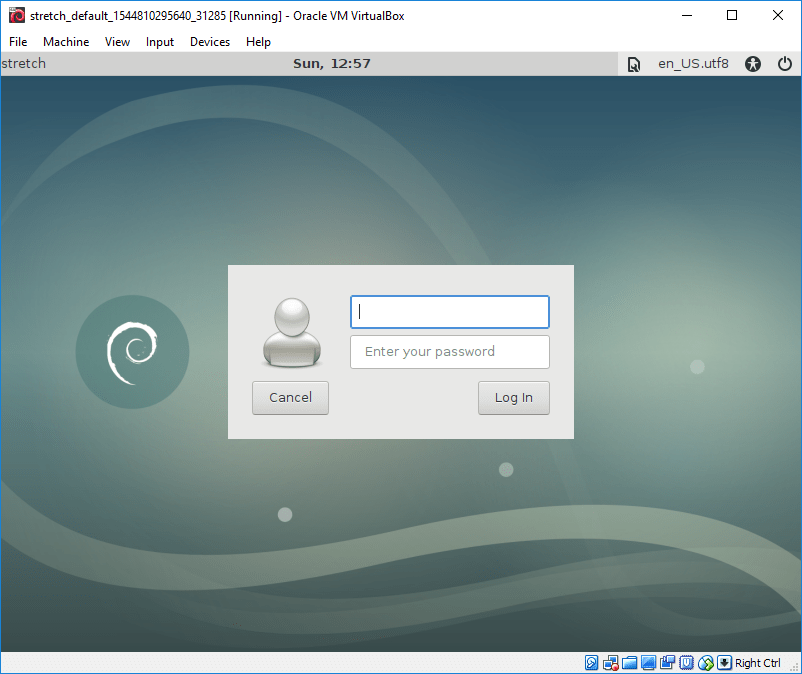
Once your VM boots, you’ll have a GUI window:


You can use this window as-is, but it’s kind of small.  I always maximize it. The first time you do this it’s going to look kind of strange:


Not a concern, as it will fix itself when we log in.  Now, log in on the GUI, using the username of vagrant and the password of vagrant.  The GUI will log you in, and resize to use the full screen:


And, you’re done!  You’ve now got a Debian box with a GUI running in Vagrant!

Shutting down the VM

When I’m done working with the GUI, I always first log out of the GUI (Applications / Log Out from the XFCE menu, then choose Log Out), then I switch to my Windows command prompt window and do a “vagrant halt”.  I don’t know if this is necessary, but it’s probably good practice: it lets the Debian GUI cleanly shut down, and then lets Vagrant cleanly shut down. It’s probably not a problem to just shut down the VM from the GUI, but I’m a little anal-retentive that way….